
Annotations
In the workflow area, you can add notes or comments using annotations. These remain in the background, so they do not interfere with your nodes and links. You can cut, copy, and paste them as usual. If you group your workflow into a supernode, the annotations will expand and collapse with it.
Right-click an annotation to access the style menu, where you can choose from preset colors and stroke types.
Text wraps automatically, but if the box is too small, a vertical scroll bar will appear. Also, keep in mind that multiple spaces will be shortened to a single space.
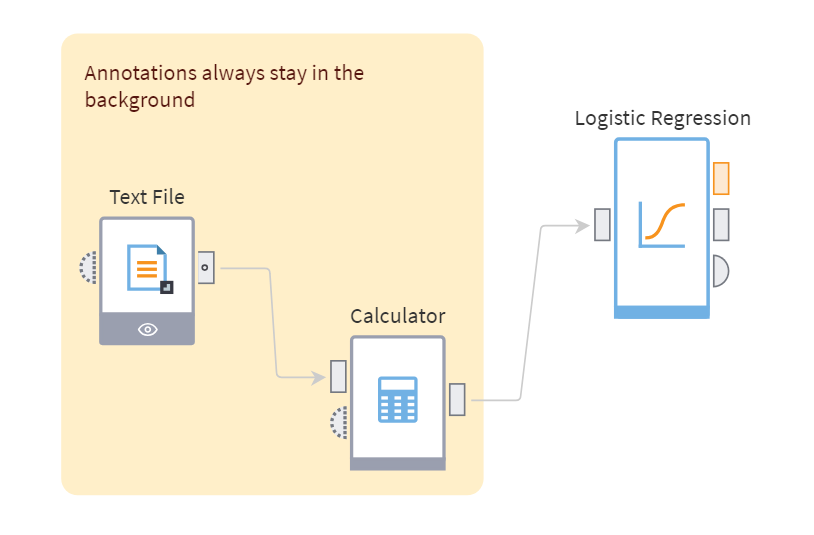
Annotations support markdown.
Note: To use Markdown in annotations, enable the Markdown syntax for comments and annotations in package properties (enabled by default).
Editing annotations
Double-click the annotation area to open the editor. The editor window contains two tabs: Annotation (Markdown) and Preview.
To format your text, use the following:
- toolbar commands (after selecting text)
- markup characters (enter directly in the text)
Toolbar buttons and corresponding markup characters:
- Bold (Ctrl + B): Enclose text with
**or__. - Italics (Ctrl + I): Enclose text with
*or_. - Strikethrough: Enclose text with
~~. - Title 1 (Ctrl + 1), Title 2 (Ctrl + 2), Title 3 (Ctrl + 3), etc.: Prefix text with
#. The more#characters, the lower the title's hierarchical level, with the lowest one being######. - Unordered list: prefix each bullet point with
*. - Ordered list: Prefix each item with a number followed by a dot.
- Checkbox: Use
[ ]for an empty checkbox and[x]for a marked checkbox. - Table: Separate columns with
|and the header line from the body with-. - Link: Format links as
[text](URL). - Image: Insert images using
![]()(e.g.,. Use the full path starting with the protocol. Note that onlyhttp://andhttps://are allowed). - Quote: Prefix each line with
>. - Separator: To add a separator line, use
***,---, or___.
The toolbar provides two additional commands:
- Single-line code (Ctrl + K): Use this for a line of code.
- Multi-line code (Ctrl + J): Use this for a block of code. A horizontal scroll bar appears when necessary.
Use the Save and Cancel buttons at the bottom of the editor to save or discard your changes, respectively.
Important: By default, loading images and links is disabled. To enable it, go to Secutiry parameters in the Administration section and select the options URL for loading images and URL for generating links. If the Apache web server configuration includes
Content Security Policywith theimg-srcdirective restricting image-loading URLs, add the necessary host addresses to the directive settings.
Read on: Keyboard Shortcuts