
Main Table
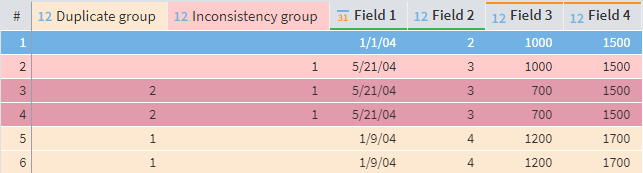
The visualizer's main table highlights duplicates and inconsistencies in the source dataset:
Note: When you launch the visualizer for the first time, the Duplicates and Inconsistencies columns are hidden. To see them, click the
Show options button next to any column's header and use the
Columns command, marking the corresponding boxes.
Color indication
The colors in the table indicate the following:
 Duplicate record
 Inconsistency
 Duplicate and inconsistency
The headers of the columns: Duplicate, Duplicate group, Inconsistency, and Inconsistency group are highlighted with the same color as the corresponding records.
The headers of the columns selected as input and output are highlighted with bold font and color indicators:
 green underscore for the input fields
 orange overline for the output fields

Highlighting inconsistencies
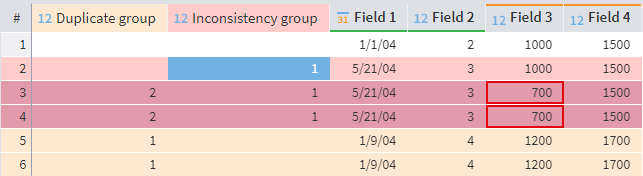
When you select a row that contains an inconsistency, other inconsistencies from the same group, different from the selected one, will be framed in red (only the first difference is considered):
Navigation
Navigate the table using the buttons at the bottom:
 Move to the next page
 Move to the previous page
 Move to the last page
 Move to the first page
To move to a specific page, enter its number to the field between the navigation buttons. One page displays 1 000 000 records.
Keyboard shortcuts
- CTRL + Left: move to the previous page
- CTRL + Right: move to the next page
- Alt + 1– Alt + 8: move to page number 1–8
- CTRL + G: go to a specific row (opens the window to enter the row number)
- CTRL + F: find the selected value
- F3: go to the next found value
- Home: go to the first cell in the current row
- Alt + Home: go to the first cell in the current column
- End: go to the last cell in the current row
- Alt + End: go to the last cell in the current column
- CTRL + Up: in Detailing, move the current row one position up
- CTRL + Down: in Detailing, move the current row one position down
Additional info
The first two table columns are:
- #: Row number
- No: Record number (hidden by default). This may be helpful if you need to apply filters, sorting, or other operations that change record order.
Clicking the column headers automatically applies different types of sorting to the column. (The type icon appears next to the header.)
To copy a cell value, use CTRL + C.
The Show options button next to each column header opens a dropdown menu with additional commands:
- Columns: opens the list of columns where you can select which columns will be displayed.
 Lock: pins the column on the left of the table
 Unlock: unpins the column
To rearrange columns manually, you can drag and drop their captions within the table header.
Read on: Filter