
Install Megaladata Server for Windows
MSI installation
The installer filenames are:
- For the Team edition:
MegaladataTeam_7.x.x.msi - For the Standard edition:
MegaladataStandard_7.x.x.msi - For the Enterprise edition:
MegaladataEnterprise_7.x.x.msi
where 7.x.x indicates the version and release numbers of the program.
A web server is required to use Megaladata Studio (the web interface for Megaladata Server). The supported options are:
- Apache: included in the distribution kit for standard installation.
- Microsoft IIS: not included; install and configure it separately.
The Megaladata Server installation process varies depending on whether you use Apache or Microsoft IIS. By default, Megaladata Studio operates via the Apache web server.
Graphical user interface
Running the installer
To install with custom parameters, click Custom in the Installation type dialog.
Selecting components for installation
Choose from the following components:
- Megaladata Server: Required for installation.
- Megaladata Studio: Installs the web interface.
- Documentation: Adds a help section to the web interface.
- Web server: Installs the built-in Apache Httpd web server. Disable this component if you plan to use a third-party web server.
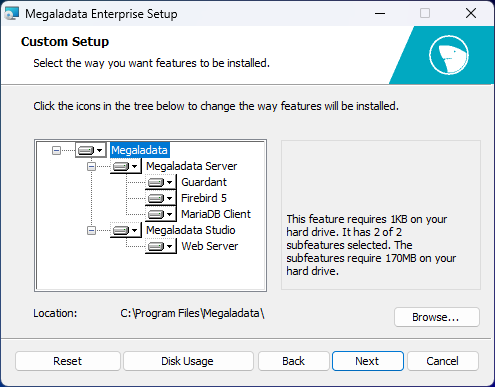
Note: The installer selects all components by default.
Megaladata server parameters
This dialog appears only when installing the Megaladata Server component.
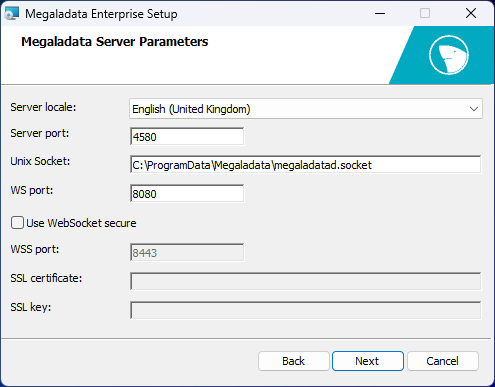
Configure the following parameters:
- Server port: Set the port number for Megaladata Integrator and BatchLauncher connections.
- WS port: Set the port number for Megaladata Studio connections via the WebSocket (
ws) protocol. - Use WebSocket Secure: Enable SSL configuration for WebSocket:
- WSS port: Set the port number for Megaladata Studio connections via the WebSocket Secure (
wss) protocol. - SSL certificate: Specify the full path to the SSL certificate PEM file.
- SSL key: Specify the full path to the SSL key PEM file.
- WSS port: Set the port number for Megaladata Studio connections via the WebSocket Secure (
- Install Guardant x64 drivers: Enable this to automatically install the drivers for the electronic security key.
Apache Httpd web server parameters
This dialog appears only when installing the Web Server component.
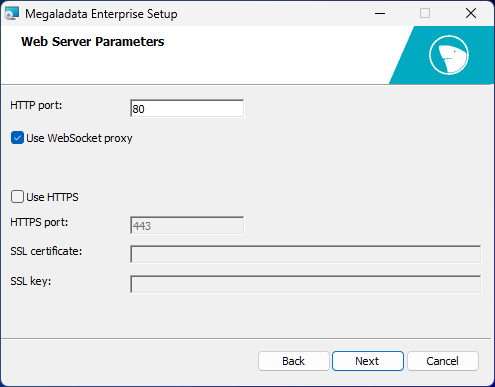
Configure the following parameters:
- HTTP port: Set the web server's HTTP port number.
- Use WebSocket proxy: Enable proxying for WebSocket connections.
- Use HTTPS: Enable SSL parameter configuration for HTTP:
- HTTPS port: Set the web server's HTTPS port number.
- SSL certificate: Specify the full path to the SSL certificate PEM file.
- SSL key: Specify the full path to the SSL key PEM file.
Megaladata Studio parameters
This dialog appears when installing the Megaladata Studio component without the Web Server component. Set the following parameters:
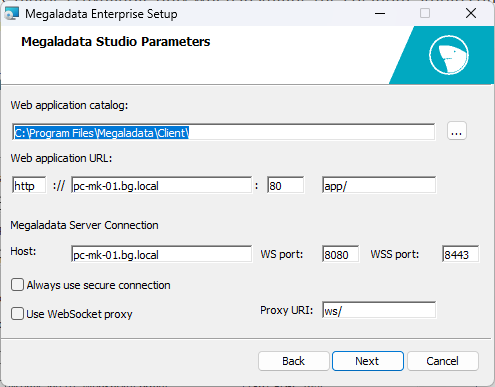
- Web application catalog: Indicate the preferred location.
- Web application URL: Enter the URL parameters.
- Megaladata Server connection: Parameters for generating the Megaladata Studio configuration file:
- Always use secure connection: Enables the secure parameter.
- Use WebSocket proxy: Enables the wsproxy parameter.
- Proxy URI: The path parameter.
Command line
msiexec /i "path_to_msi_file" msi_keys Megaladata_parameters
where:
msi_keys: Valid values are available by runningmsiexec /?in the command line. Useful options include:/l* "%TEMP%\Megaladata.msi.log": Enables installation logging./qn: Performs a "silent" installation without displaying the graphical interface.
| Key | Default Value | Description |
|---|---|---|
| ADDLOCAL | Server,Studio,Help,Webserver |
List of components to install |
| INSTALLDIR | %ProgramFiles%\Megaladata |
Installation directory |
| SERVER_CRT_PATH | Path to SSL certificate | |
| SERVER_KEY_PATH | Path to SSL key | |
| SERVER_PORT | 4580 |
Megaladata server port |
| SERVER_SVC_NAME | Megaladata |
Megaladata server service name |
| SERVER_USE_SSL | 0 |
Enable encryption for WebSocket (0, 1) |
| SERVER_WS_PORT | 8080 |
Megaladata server WebSocket port |
| SERVER_WSS_PORT | 8443 |
Megaladata server WebSocket secure port |
| WEBAPP_OPENID | Not set for Enterprise; for Team and Standard the preset value is none |
OpenID mode in Megaladata Studio config file |
| WEBAPP_URI | app/ |
Megaladata Studio web interface URI |
| WEBSRV_CRT_PATH | Path to SSL certificate | |
| WEBSRV_KEY_PATH | Path to SSL key | |
| WEBSRV_PORT | 80 |
Web server HTTP port |
| WEBSRV_PORT_SSL | 443 |
Web server HTTPS port |
| WEBSRV_PROXY_URI | ws/ |
WebSocket proxy URI |
| WEBSRV_SVC_NAME | httpd_megaladata |
Web server service name |
| WEBSRV_USE_SSL | 0 |
Enable encryption (HTTPS) (0, 1) |
| WEBSRV_USE_WS_PROXY | 0 |
Enable WebSocket proxy (0, 1) |
:: Silent installation of Megaladata without a web server
msiexec /i ".\MegaladataEnterprise.msi" /qn ADDLOCAL=Server,Studio,Help

:: Silent installation with custom ports
msiexec /i ".\MegaladataEnterprise.msi" /qn WEBSRV_PORT=9080 SERVER_WS_PORT=9081 SERVER_PORT=9082

:: Silent installation with WebSocket SSL enabled
msiexec /i ".\MegaladataEnterprise.msi" /qn SERVER_USE_SSL=1 SERVER_KEY_PATH="%ALLUSERSPROFILE%\ssl.key" SERVER_CRT_PATH="%ALLUSERSPROFILE%\ssl.crt"
Licenses
To start the MegaladataServer service, you must configure licensing keys (see License keys).
If using a network key server, create a file in the directory "C:\ProgramData\Megaladata\Server".
Starting the services
The MegaladataServer and MegaladataHttpd services do not start automatically after installation.
During installation, Start Megaladata Server and Start Web Server shortcuts are added to the Windows Start menu.
To start the services using a shortcut:
- Right-click the shortcut.
- Select Run as administrator from the context menu.
Upon successful startup, the message Service "MegaladataServer" started successfully appears in the console window.
To start services from the command line as an administrator, run:
- To start the
MegaladataServerservice:net start Megaladata - To start the
MegaladataHttpdservice:net start httpd_Megaladata
Note: Avoid running the Megaladata Server service under a system account. Instead, create a separate account to customize specific access rights.
Firewall
The host running Megaladata Server must allow the following connections:
- Inbound on TCP port
8080|8443(WebSocket) for client hosts (browsers):- If using a WebSocket proxy, allow connections only for the web server host.
- Inbound on TCP port
4580for hosts running Megaladata Integrator or BatchLauncher. - When using Guardant network keys: Allow connections to TCP/UDP ports
3186and3187of the network key server host.
The web server host must allow the following connections:
- On TCP port
80|443(HTTP(S)) for client hosts (browsers).
Ensure that installed antiviruses and firewalls permit these connections.
- Allow connections to the web server's HTTP port:
netsh advfirewall firewall add rule name="Allow HTTP" dir=in action=allow protocol=TCP localport=80
- Allow connections to Megaladata Server WebSocket:
netsh advfirewall firewall add rule name="Allow Megaladata WebSocket" dir=in action=allow protocol=TCP localport=8080
- Allow connections to Megaladata Server for the Integrator:
netsh advfirewall firewall add rule name="Allow Megaladata Port" dir=in action=allow protocol=TCP localport=4850 remoteip=%mgi_host_ip%
- Allow connections to the network key server for Megaladata Server:
netsh advfirewall firewall add rule name="Allow Guardant Net" dir=out action=allow protocol=TCP remoteport=3186-3187 remoteip=%guardant_net_host_ip%
User accounts
During Megaladata Server installation, the following user accounts are created:
user, with an empty password: Account for operating Megaladata workflows. This account has Workflow design and View reports roles and package publication rights.admin, with passwordadmin: Account for Megaladata server administration.service, with passwordservice: Account for connecting external applications (such as Integrator and BatchLauncher).
Note: You must change the administrator account (
admin) password after completing the installation.
Checking the functionality
To verify the installation:
- Launch the Megaladata Studio web client:
- Use the shortcut
All Programs\Megaladata\Studio\Megaladata Studioin the Windows Start menu. - Or open a browser (Chrome recommended) and navigate to:
http://localhost/app/. If you changed the web server port, use:http://localhost:<HTTP Port>/app/.
- Use the shortcut
- Log in with the
useraccount and an empty password.
Articles in Section: