
Installing Megaladata Integrator
Installer file: MegaladataIntegrator_7.x.x.msi (where 7.x.x represents the version and release number).
Important:
- Ensure the Megaladata Integrator version matches your Megaladata server version.
- Install ASP.NET Core Runtime 8.0 hosting bundle before proceeding.
Installing MSI
Graphical interface
Launching the installer
For custom installations, select Custom in the Installation type dialog. Run the installer as an administrator to access existing IIS site parameters.
Installation directory
The default installation path is %ProgramFiles%\Megaladata\.
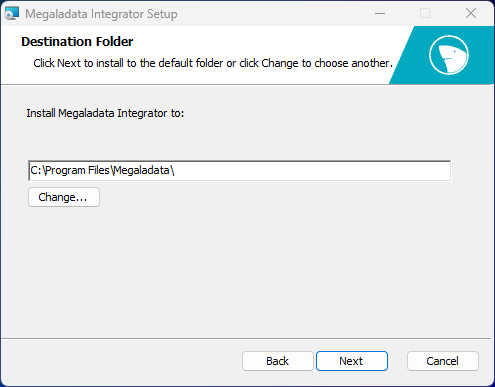
Configuration settings
Configure installation as shown in the image:
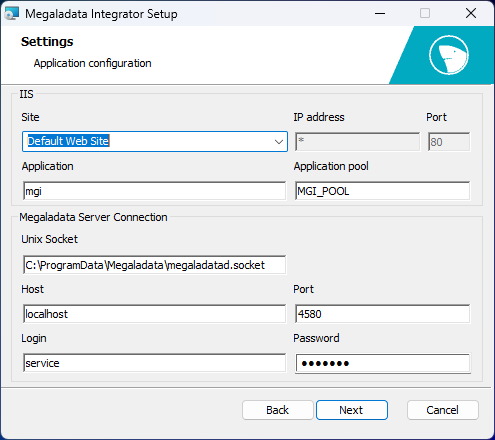
IIS settings:
- Site: Name of the IIS site for deployment
- IP Address and Port: Binding settings for the IIS site
- Application: Name of the web application
- Application pool: Name of the pool for Megaladata Integrator. The installer creates it if it doesn’t exist.
Megaladata Server connection settings:
- Unix socket: Path to the Unix domain socket file (default:
%ProgramData%\Megaladata\Server\megaladatad.socket). Leave blank if the server is not onlocalhostrelative to Megaladata Integrator. - Host: Megaladata server host address
- Port: Megaladata server port
- Login and Password: Credentials for connecting to the Megaladata server
Command line
Use the following command:
msiexec /i "MegaladataIntegrator_7.x.x.msi" [msi_keys] [integrator_parameters]
-
You can find the allowed values of
msi_keysby runningmsiexec /?in the command line. The most helpful values are:/l* "%TEMP%\megaladata.msi.log": enables installation logging. For example, themsiexec /i "MegaladataIntegrator_7.0.2.msi" /L*v С:\Temp\IntegratorInstallerLog.logcommand will launch the installation of Megaladata Integrator 7.0.2 and log the whole process in theIntegratorInstallerLog.logfile./qn: silent installation (without displaying any graphical interface)
-
integrator_parametersin form of a KEY–VALUE pair:
| Parameter | Default Value | Description |
|---|---|---|
| IIS_APPNAME | mgi |
IIS web application name |
| IIS_POOLNAME | MGI_POOL |
IIS application pool name |
| IIS_WEBSITENAME | Default Web Site |
IIS website name |
| IIS_WEBSITEIPADDRESS | 0.0.0.0 |
IIS site binding address |
| IIS_WEBSITEPORT | 80 |
IIS site binding port |
| MGS_HOST | localhost |
Megaladata server host |
| MGS_PORT | 4580 |
Megaladata server port |
| MGS_USER | service |
Megaladata server account name |
| MGS_PASS | service |
Server account password |
| MGS_UNIXSOCKET | %ProgramData%\Megaladata\Server\megaladatad.socket |
Unix domain socket file path |
Manual installation
- Copy the Integrator directory contents to your target location.
- Update Integrator.dll.config as needed.
- In IIS:
- Create an application pool in Integrated mode with CLR v4.0.
- Create a web application in the new pool, pointing to the Integrator files.
Verifying functionality
-
Open your browser and navigate to
http://<Server>/mgi/rest/help, where<Server>is the host name.For example:
http://localhost/mgi/rest/helpMegaladata Integrator should display:
Endpoints at http://<Server>/mgi/rest/helpNo packages are currently published. Publish packages in Megaladata Server to use them as web services.
-
For Megaladata Enterprise, use
http://<Server>/mgi/openapi/index.html.For example:
http://localhost/mgi/openapi/index.htmlDisplays No API definition provided on the REST service operation page.
-
For SOAP services (Standard/Enterprise editions):
http://<Server>/mgi/soap?wsdlReturns a WSDL with this warning:
<wsdl:documentation>
No packages have been published for now. To use packages as a web service, you must first publish them to Megaladata Server.
</wsdl:documentation>
Example URL:
http://localhost/mgi/soap?wsdl
Note: Shortcuts for the URLs you use are added to the Windows Start Menu > Megaladata folder during installation.